
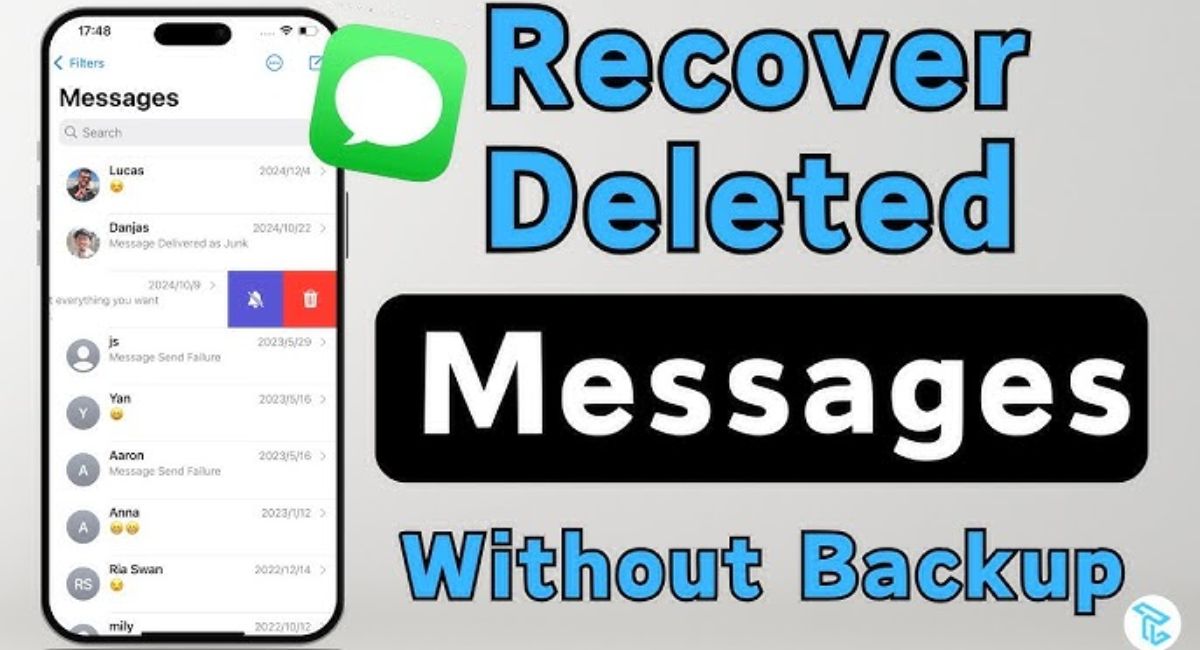
Losing deleted messages can feel stressful, especially when the conversation contains something important like an address, verification code, or personal detail. Many people assume once texts are gone, they’re gone forever, but that isn’t always true. In reality, your phone often keeps deleted data hidden for a short time before removing it completely.
That’s why acting fast can make a big difference. In this guide, you’ll learn practical ways to recover deleted texts without using any app, whether you’re on iPhone or Android. You’ll also discover simple tricks to check backups, message folders, and built-in restore options that most users ignore until it’s too late.
Understanding Where Deleted Messages Go (Before They Disappear Forever)
Before you panic, you need to understand one key idea. Deleted messages often don’t vanish instantly. Your phone usually marks them as “removed” but keeps them stored until new data replaces them. That’s why recover deleted messages without backup is sometimes possible if you act quickly.
However, modern devices use advanced cleaning systems. Android phones use the Android TRIM feature, and iPhones also manage storage aggressively. This means deleted data can disappear faster than you expect. On top of that, encryption makes recovery difficult, especially on newer Samsung and Google devices sold in the USA.
Most phones store texts in a database file. Many Android apps store messages in SQLite databases. That’s why recovery tools sometimes work, even after deletion. But here’s the catch. If your phone overwrites the deleted space, recovery becomes impossible. That’s why you must avoid overwriting deleted data by stopping phone use immediately.
Recover Deleted Messages on iPhone Using Recently Deleted Folder
If you use an iPhone, Apple gives you a surprisingly helpful feature. The Messages app includes a “Recently Deleted” area. This works like a safety net. If you deleted the wrong chat, you can often restore it with a tap in seconds. This is the easiest method for anyone searching How to Recover Deleted Messages Without Any App.
To do this, open Messages, tap Edit, and choose Recently Deleted. If your message is there, select it and restore. The best part is that it usually stays there for 30 days before permanent removal. That time window gives you a real chance to fix your mistake without stress.
Still, not every iPhone shows the folder. If you deleted messages long ago or your device is running an older iOS version, you might not see it. In that case, you’ll need to move to iCloud recovery. But always check here first because it is the fastest and safest solution.
Restore Deleted Messages on iPhone Using iCloud Backup (No App Needed)
If Recently Deleted doesn’t help, your next option is iCloud. Many USA iPhone users don’t realize that iCloud can back up messages automatically. If your phone has iCloud Backup enabled, you can restore deleted messages by restoring your entire device. This is a strong method for how to restore deleted SMS without any extra tools.
However, you must be careful. Restoring iCloud backup replaces your current data with the backup version. That means newer photos, apps, or chats may disappear. So before you do anything, confirm your backup date. If the backup was made before deletion, recovery becomes very likely.
The downside is time. A full restore can take hours depending on your Wi-Fi speed. Still, if your deleted conversation is important, this is worth trying. It is also Apple-approved and doesn’t risk malware or scams. That makes it one of the cleanest solutions for anyone who wants to recover messages without installing apps.
Recover Deleted Messages on Android Using Trash, Archive, or Built-in Restore Options
Android recovery works differently. Android doesn’t have one universal “Recently Deleted” folder like iPhone. But many messaging apps have their own hidden storage areas. That’s why you should always check Recycle Bin in Messages before trying anything complicated. On Samsung devices, there is often a recycle bin in Samsung Messages where deleted chats may sit temporarily.
If you use Google Messages, you should also check archived section. Many people think they deleted a conversation but they actually archived it. This is extremely common. You can open Google Messages and look for Google Messages archived conversations. If your chat is there, you can quickly retrieve archived texts with no backup needed.
This is the best method to retrieve deleted conversation Android without using recovery software. It is also safe because you are using built-in tools. For USA users, this step matters even more because carrier messaging apps sometimes store messages in cloud systems too. Always check your default SMS app before assuming the messages are gone forever.
Restore Deleted Messages Using Google Drive Backup (Android Method)
If your texts are not in the Trash or Archive, your next best option is Google Drive. Many Android phones in the USA automatically back up SMS if you enabled Google Backup. This is the most common method to recover deleted texts on Android when people don’t realize backup was active.
To recover messages using Google backup, you usually must reset the phone. This sounds extreme, but it works. You perform a factory reset and restore backup during setup. Google then reloads your apps, contacts, and sometimes SMS messages depending on your settings. This is one of the strongest Android message recovery methods without downloading extra apps.
Here’s the key point. If you reset your phone without a backup, you lose everything. So always confirm your backup exists first. If your backup is old, recovery may fail. Also remember this: Google backup does not always restore full MMS media. It often restores plain text messages only. Still, it can save your most important conversations.
Recover Deleted Messages on Samsung Phones Using Samsung Cloud or Smart Switch
Samsung devices have extra recovery options that most people ignore. If you want to recover deleted messages on Samsung, you should check Samsung Cloud first. Many Galaxy users unknowingly enable it during setup. If Samsung Cloud backed up your messages, you can restore messages from Samsung Cloud directly through Samsung settings.
This method works well for Samsung Galaxy S21 deleted messages recovery because the S21 supports Samsung Cloud features depending on region and carrier. If Samsung Cloud has your texts, you can restore them without installing any recovery tool. That’s why it is one of the best ways to recover texts without risk.
If Samsung Cloud is empty, Smart Switch is your next option. Smart Switch lets you back up and restore phone data using a PC or Mac. If you ever backed up your device using Smart Switch before, you might be able to restore the deleted messages. Many users don’t remember doing this. Smart Switch can be a lifesaver because it acts like a local backup stored on your computer.
How to Restore Deleted Messages From SIM Card or Old Device Backup
Some people believe SIM cards store all SMS forever. That used to be partially true in older phones. Today, most SMS messages store inside your phone memory, not on the SIM. Still, it is possible to restore older SMS if your SIM stored some messages. That’s why people still search for recover deleted SMS without app using SIM methods.
If you have an old phone where the SIM was used, try inserting your SIM into that device. Sometimes older devices still show stored SMS. It is rare, but it happens. This method works best if the messages were saved to SIM manually. In the USA, many users never do this, but it is worth checking.
Old device backups are more useful. If you previously used Smart Switch, Google backup, or carrier backups, you might have a stored copy of messages. Even if your phone has no backup now, your old laptop or old phone might hold the answer. Think of it like finding an old notebook with your missing notes.
Important Tips to Increase Recovery Chances (Before Overwriting Data)
When you delete a message, time becomes your enemy. The more you use your phone, the more likely the deleted data gets overwritten. That’s why the first rule is simple. Stop using your phone. Don’t install apps, don’t take photos, and don’t download files. This helps prevent overwriting and improves your chances of recovery.
If possible, switch on airplane mode. This prevents background downloads and app updates. Background updates can silently overwrite storage. This is one reason why recovery not guaranteed is a common warning in Android recovery guides. Every device behaves differently, so every case is different even if two people have the same phone model.
If you plan to use a computer-based recovery method later, prepare carefully. Some tools require access through developer mode. That means you must turn on USB debugging in Android settings. This step is also called USB debugging Android recovery in many tutorials. It allows recovery tools to communicate with your phone properly.
When to Contact Support or Your Mobile Carrier for Message Recovery
If nothing works, your carrier might help. Some USA carriers provide messaging backup services. For example, Verizon previously offered tools like Verizon message backup through its cloud services. Other carriers may store message logs or offer limited recovery options. These are known as carrier cloud backup services and they may help in special cases.
However, carriers usually cannot provide full text content due to privacy laws. They might only show timestamps and phone numbers. Still, if the deleted conversation is tied to legal or business needs, contacting your carrier can be worth it. This is especially true if you need proof that a message was sent.
You can also contact Apple or Samsung support. They won’t magically recover deleted texts, but they can confirm whether your device has a hidden backup option enabled. If you feel stuck, support can guide you through built-in recovery settings. Sometimes, one overlooked setting can save everything.

Recovery Options Table (Quick Comparison)
| Recovery Method | Works Without App? | Best For | Success Chance |
| iPhone Recently Deleted Folder | Yes | iPhone users | High (within 30 days) |
| iCloud Backup Restore | Yes | iPhone backup recovery | Medium to High |
| Google Messages Archive | Yes | Android users | High if archived |
| Samsung Messages Recycle Bin | Yes | Samsung devices | Medium to High |
| Google Drive Backup Restore | Yes | Android backup recovery | Medium |
| Samsung Cloud Restore | Yes | Samsung backup users | Medium |
| Smart Switch Backup Restore | Yes | Samsung PC backup | Medium |
| SIM Card Check | Yes | Old SMS storage | Low |
| Carrier Support | Yes | USA provider services | Low to Medium |
Case Study: Real Samsung Galaxy S21 Deleted Messages Recovery Example
A Samsung Galaxy S21 user deleted an important thread and had didn’t have backup turned on in Google settings. First, they checked Samsung Messages and found nothing. Then they checked Google Messages archive and found the conversation was archived, not deleted. They recovered it instantly.
Another user had no Trash folder. They had to connect the phone to your computer and use recovery software. They plug phone into PC and ran a scan. The scan could scan and preview deleted messages, but saving required payment. Still, they recovered the text content successfully.
This shows why you should always start with built-in tools. Recovery apps are the last step, not the first. In many cases, your phone already has the solution hiding in plain sight.
Important Quote for Readers
“Your best chance of recovering anything is if you’ve got some kind of backup. Without it, recovery becomes uncertain.”
This is why experts say the best chance is having a backup, even if you don’t realize you enabled one.
Final Note About Recovery Software (Not an App on Your Phone)
If all built-in methods fail, you may need Android data recovery software on your computer. Popular names include Disk Drill Android recovery, UltData Android recovery tool, FoneLab for Android, iMobie DroidKit recovery, and DiskDigger Pro recovery. Most require you to scan it with a recovery app through a PC.
Some tools need root access. In many cases, the device must be rooted, and it helps if it was rooted before deletion. Many also require developer mode. You may need to turn on USB debugging first. If you don’t want the risk, the simplest option is still this: ask the sender to resend messages.
Conclusion: How to Recover Deleted Messages Without Any App the Smart Way
If you want the best results, start simple. Check Trash, Archive, and Recently Deleted folders. Then check cloud backups like Google Drive, iCloud, or Samsung Cloud. If that fails, Smart Switch backups or carrier services may help. Acting quickly matters because Android and iPhone storage overwrites deleted data fast.
The truth is simple. You can often recover messages without installing anything. But speed and backups decide your success. If you follow these steps calmly, you’ll have the highest chance to recover what you lost and avoid the same problem again.